Apple iPhone cases come in a multitude of colors and the choice of two materials: leather and silicone. Which is better for you? Prices aside, let's look at both. Silicone colors are cooler and brighter while leather colors are warmer and darker. While leather will age, it does so in a way that doesn't look too bad. It looks pretty natural. Silicone doesn't age, but in my experience, dark marks often appear after significant use. In addition, silicone is good with water. Aesthetically speaking, both look good in their own lights, but if there's one thing to note, I personally prefer leather because it reminds me of a wallet, something I see the smartphone fully replacing one day. I don't recommend the folio by the way, as it can be awkward to carry cash with and it essentially just a leather case glued on to a piece of leather. In short, take note of these points and see if you prefer one material over the other.
Showing posts with label tips. Show all posts
Showing posts with label tips. Show all posts
Saturday, May 11, 2019

Wednesday, May 8, 2019
Apple's Repair Warranty
If you get a repair from Apple on a product that is out of warranty, if you find any additional problems within 90 days of the completed repair, the issue is likely covered under Apple's repair warranty. If you find yourself in this situation, don't hesitate to bring your product into an Apple Store and see if it will be covered. Things like water-damage are not covered, so don't rely on it as a get out of jail free card. However, if you find the display of your device is acting finicky, you may be able to get it replaced. These repairs usually take less than a week. I highly recommend it because the repair facility often fixes any problems it can find, not just the ones you report. In my case, they didn't charge me extra for those issues, but I'm sure it can vary. They will notify you if there will be an extra charge. A good repair can bring new life to an old device, so check it out if you're having a hardware issue.
Saturday, April 27, 2019
The Transition to 64-Bit Apps
64-bit apps have been the norm for iOS for some time now. 32-bit apps will no longer work on any iOS device running the latest software. This has mostly gone unnoticed to many, as most developers updated their apps to support this change. macOS is a different story. Because the Mac App Store is not the only way to install macOS software, macOS developers aren't always held to the standards that Apple sets for them. macOS Mojave is the last version of macOS that will support 32-bit apps, and that is a big leap. While most macOS apps these days are 64-bit, it takes just one vital app not supporting it to discourage someone from updating. While many apps will be updated, I have some apps that haven't been updated in years, and I doubt they will be. If you're curious which apps on your Mac are 32-bit, go to the Apple in the top left corner, select "About This Mac," and select "System Report..." In the left sidebar, scroll down and select "Applications." This will display all of your applications. You can tell under the column labeled "64-bit (Intel)" if a specific app is 32-bit. Make sure you can live without these apps before updating this fall.
Monday, April 15, 2019
Reset Advertising Identifier
With Mozilla's recent petition to get Apple to change how advertising identifiers are enabled out of box, here's a quick rundown of how to get advertisers to track you less. On iOS, go to Settings > Privacy > Advertising > and enable "Limit Ad Tracking." On macOS, go to System Preferences > Security & Privacy > Privacy > Advertising > and check the box for "Limit Ad Tracking." Every once in a while, I also recommend hitting the "Reset Advertising Identifier" button under the "Limit Ad Tracking" button on both iOS and macOS. This should help limit advertiser tracking.
Saturday, April 13, 2019
Using Spotlight to Hold Copied Text
There are times where you need to copy multiple pieces of text on the computer. For example, one window may have a quote while another window may have a citation, and you need to paste both in another window. It can be annoying having to switch to window A, over to window C to paste the first text, then to window B, and back to window C to paste the second text. Instead, with macOS, you can go from A to B to C and have the same result. To do this, copy the first piece of text and open Spotlight with command-space. Paste it in Spotlight and close it with command-space. Then, go to window B and copy the next string of text. Now you can go to window C and paste window B's text, open Spotlight and copy the text from there, and paste that into window C as well. While it may seem like a pretty unique circumstance, I find myself doing this constantly with programming. I hope this helps!
Thursday, April 11, 2019
AirPlay 2 Menu on Apple TV
AirPlay 2's main feature is the ability to control many different devices at once from one device. On iOS, it's in Control Center. However, there is a hidden AirPlay 2 menu on Apple TV. You can access it by holding the Play/Pause button on the Apple TV remote. You have to hold it for around five seconds, so just keep holding it. From here, you can view other AirPlay 2 devices and the content they're playing. I actually discovered this on accident, but it's a well-hidden feature. I hope this helps!
Thursday, April 4, 2019
Alexa, Sing me a Song
One of Alexa's lesser known functions is that she can sing songs. Every song is custom made for Alexa, typically revolving around smart speakers. Her voice is also pretty good, sounding like an actual human rather than a smart assistant. I've used the command quite a few times and haven't heard the same song twice, so I recommend trying it out whenever you're bored.
Sunday, March 10, 2019
Apple Promotes iTunes Credit Reload Feature with 10% Bonus
Apple is offering a deal to compete with the constant sale of iTunes gift cards available at retailers. If you reload your credit using Apple's interface, you will receive a 10% bonus to whatever you reload. You can receive up to $20 for a $200 reload. It should be noted that you can often find 15-20% discounts on iTunes Gift cards at certain retailers, so take this offer with a grain of salt. To take advantage of this offer, go to Settings, tap your name, tap the iTunes and App Store section, select your Apple ID, and finally tap "Add Funds to Apple ID."
Monday, February 11, 2019
On-Ear Headphones
To anyone looking to buy the Beats Solo³ headphones or any on-ear headphones, I think there is an important point to consider before you finalize your purchase. There are three main types of headphones: in-ear, on-ear, and over-ear. AirPods are in-ear, Beats Solos are on-ear, and Beats Studios are over-ear. The issue with on-ear is that for some, myself included, the headphones can cause your ears to become sore after about 30 minutes of listening. It can become irritating and can force the user to take breaks from listening to music. Over-ear headphones typically provide crisp sound without any pain to the ears. In-ear headphones are another great alternative, however they typically don't have as good of quality and can be prone to falling out of your ear. In short, if you have the opportunity, find a way to try on-ear headphones for a while before you buy them. You might find the investment in a pair of over-ear headphones to be more worth it.
Wednesday, February 6, 2019
Ask Websites Not to Track Me
In the latest beta of Safari, for both iOS and macOS, a setting labeled "Ask Websites Not to Track Me" was removed. This setting has been around since 2011, but there's an interesting story as to what this actually does. The FTC proposed a setting that would request websites to not track the client browser. The only problem was that websites and its advertisers did not have to comply with this request. This setting is actually more of a security threat than anything in today's world, which is why it is being removed. Because advertisers can build a digital profile of you based on browser settings and other variables, this one setting could be used to add to that digital profile. A massively simplified example would be if Facebook noticed that a browser was searching for dog videos, and that browser was based in Anytown, USA, with macOS 10.11.3 and is requesting websites not to track them. It's that much easier to guess a person's digital identity through browser variables alone. It's truly ironic that this mechanism meant to prevent tracking only facilitated it even more.
Sunday, January 27, 2019
Improved Search Suggestions Coming to Safari in iOS 12.2
Search suggestions are pretty useful for short search queries. However, for longer queries it can be annoying. Say you wanted to search for "How to sell an iPhone on eBay." As you type, the results would show up as "How to," "How to sell," "How to sell an iPhone," and finally "How to sell an iPhone on eBay." To search what you wanted, you'd have to type all of that out. However, with new search options coming in iOS 12.2, you can tap on the arrow next to the search suggestion to complete your current query. This would help typing out searches in Safari. It's been a feature in many other apps, like YouTube and Google Chrome, so it's nice to finally see the native iOS browser get this treatment.
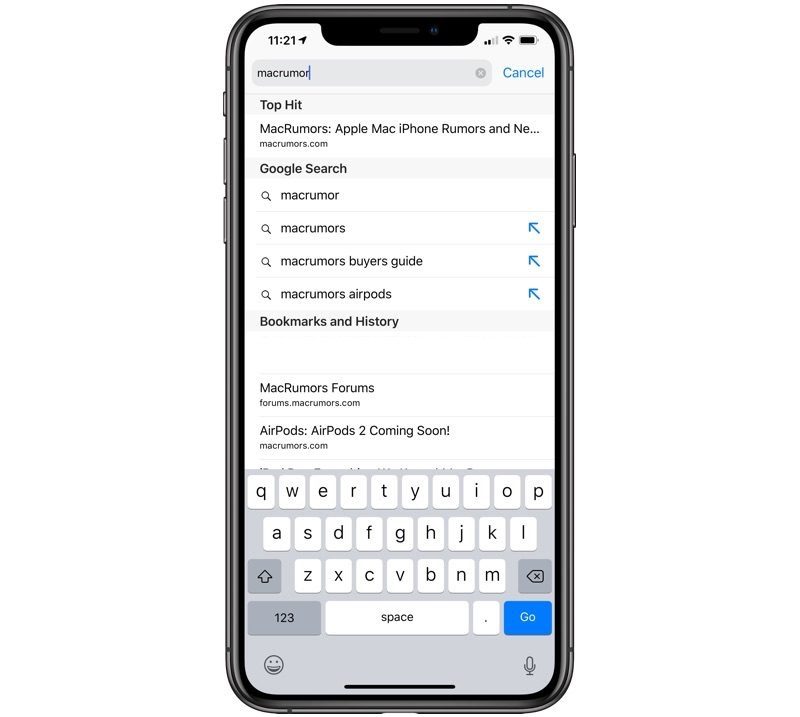 |
| Image Credit: MacRumors |
Sunday, January 20, 2019
How to Setup Cellular on an Apple Watch
The Apple Watch Series 3 introduced cellular connectivity for Apple Watch. Because the Apple Watch is so dependent on your iPhone, you need your iPhone to enable cellular. Your watch will have the same phone number as your iPhone, so any calls you'd normally receive on your iPhone will also be on your Apple Watch, should your watch be out of range from your iPhone. All you need to do is go through the Apple Watch app, tap Cellular on the "My Watch" tab, and follow your carrier's instructions. While Apple advertises a $10/month cellular plans, some carriers may deviate from that. In addition, many carriers have a one time activation fee.
Tuesday, January 8, 2019
macOS Mojave Accent Color
For decades, the accent color for macOS has been a blue color. This is seen everywhere, in things like colored buttons and selection lists. This was likely because of the Aqua theme introduced with Mac OS X so long ago. However, macOS Mojave lets you pick your own accent color. To do so, open System Preferences and go to General. You can use the radio buttons to pick your own accent color to give your Mac a bit more uniqueness to it.


Thursday, December 27, 2018
macOS Mojave's Stacks
When it was first announced, I didn't think too much of the Stacks feature. It essentially groups up your files on the desktop by file type. I figured that's what folders were for and didn't think much of it. However, I now see how useful it can be. I usually just cleanup my desktop from time to time by either trashing files or sending them to an archive folder, but between file purges, my desktop can get very messy, especially during big projects. So, I find that Stacks come in handy often. To enable Stacks, just right click on the desktop and click "Use Stacks."
Tuesday, December 25, 2018
Tips for Your New iOS Device
If you just got a new iOS device for Christmas, be sure to follow these tips to get the most out of your new device.
If this is your first upgrade in a while, remember that there are more features than what is advertised for your device. The iPhone 7 introduced water-resistance and better speakers. The iPhone 8 introduced wireless charging. The iPhone X has portrait mode and two cameras in all models. Be sure to see what's changed since your last iPhone.
If you like starting fresh, rather than restoring from a backup, check the Apple App Store for some new apps. Their front page and collections are great starting points and can help you find apps you never knew you needed. I recommend 1Password and Deliveries for starting out fresh.
Finally, take note of the devices your old iPhone interacted with. For example, Bluetooth devices may need to be repaired. Your car will likely keep searching for your old phone. Bluetooth speakers will need repairing as well. However, AirPods will automatically connect to your new device, as long as it shares your Apple ID.
If this is your first upgrade in a while, remember that there are more features than what is advertised for your device. The iPhone 7 introduced water-resistance and better speakers. The iPhone 8 introduced wireless charging. The iPhone X has portrait mode and two cameras in all models. Be sure to see what's changed since your last iPhone.
If you like starting fresh, rather than restoring from a backup, check the Apple App Store for some new apps. Their front page and collections are great starting points and can help you find apps you never knew you needed. I recommend 1Password and Deliveries for starting out fresh.
Finally, take note of the devices your old iPhone interacted with. For example, Bluetooth devices may need to be repaired. Your car will likely keep searching for your old phone. Bluetooth speakers will need repairing as well. However, AirPods will automatically connect to your new device, as long as it shares your Apple ID.
Monday, December 24, 2018
Ask Alexa Where Santa Is
Tracking Santa's journey throughout the past few years have changed a lot in the past decade. Google has taken over Norad for a while now, but Alexa is finally putting Norad back in the spotlight. Just ask her where Santa is tonight and she'll let you know where Santa is based on Norad's tracking service. It's a fun way to bring the family together this Christmas Eve. Merry Christmas everyone!
Monday, November 19, 2018
Gmail's Handy Reminder
If you write a lot of emails, you know the feeling of instant regret when you forget to add an attachment to an email you've already sent. If you can relate, Gmail has you covered. I don't know how long this has been a feature, but I encountered the message below the other day. I mention an attachment in my email and I forgot to attach one. Google notices this and prompts me if I still want to send the message. Think the "your message doesn't have a subject" reminder, but it's actually useful. All in all, this is a handy little feature that can go a long way.


Tuesday, August 7, 2018
App in the Air on Apple Watch
A lot of Apple Watch apps don't use the Apple Watch's capabilities to its maximum potential. Which is understandable, as Apple Watch isn't always the optimal device in many situations. However, App in the Air does a fantastic job of using Apple Watch for quick, useful information at a glance. The app can be used as a complication on your watch face. It can count down how much time is left on your flight, even when offline. It's fully compatible with Time Travel. About every six hours, it will remind you to stretch. This app recently served as my travel companion on my recent Japan trip and I highly recommend it for anyone going to travel, especially if they have an Apple Watch.
Sunday, July 29, 2018
Apple TV CEC Control
One of the biggest issues I have faced for years is using Apple TV with other remotes. Typically, I have to pick up the main remote and turn on the TV and pick up the Apple TV remote to turn on the Apple TV. Then, if I want to turn the input to my Nintendo Switch, I have to change the input on the main remote and turn on the Nintendo Switch with my controller. I know this sounds really lazy, but there is a clear issue of continuity. And yes, I realize remotes didn't exist at one point. Anyways, my whole life was changed today when I discovered HDMI CEC (Consumer Electronics Control). Configuring these settings on your compatible HDTV (and compatible devices) will allow you to simply pick up your Apple TV remote and press a button. Then the TV will turn on and switch to the Apple TV input, all with one button! When the Apple TV goes to sleep after a while, the TV will turn off. There are many different configuration methods based on your brand of TV, so check Apple's guide if you need help setting it up.
Thursday, July 26, 2018
H.265 Video and Compatibility
I've worked with Final Cut Pro for a while now. It's made by Apple works great on Apple hardware because it's made for Apple hardware. With the addition of HVEC or H.265 video capture on the latest iPhones, some Mac users who haven't upgraded to High Sierra yet may find some compatibility issues with video taken from a new iPhone. H.265 video will take up about half as much space as H.264, but it requires Macs to be on macOS High Sierra to properly watch it. For a quick and immediate workaround, use Handbrake to convert the video to the H.264 video codec. This should fix any compatibility issues. If you don't need an immediate fix, I recommend upgrading to macOS High Sierra. Regardless, you should upgrade to High Sierra when you're not in the middle of a project, as it will save you a lot of space in the long run.
Subscribe to:
Posts (Atom)