Showing posts with label iOS 7. Show all posts

Friday, February 8, 2019

How iOS 7 Changed UI Design

When iOS 7 first released, there was controversy to say the least. Changing the design of something as big as iOS at the time was unprecedented. All of the iconic icons we had grown used to would be replaced with flat imagery. Yet, despite the criticism, every piece of software eventually changed to the flatter design. Today, users seem to like flat, unrealistic assets and design choices, which isn't inherently a bad thing. I personally like the flat vector design when it's done right. The design was an important step for software design.

The unrealistic design makes the software feel like an augmentation of reality, rather than blending with it. Imagine if smart watches attempted to look realistic, instead of using flat graphics. It would look like an eyesore, because it's trying to be something it's not. When design embraces its limitations, rather than mask them, something new and fresh can be brought to the table.

It also brought focus to color and accents. With no more gradients and just solid colors, developers could show off their brand in each app, while keeping a cohesive experience throughout the device. It's the little things like this that bring personality to each app. The sky blue and white of Twitter are perfect examples of color branding done well.

Was iOS 7's design choice better than the previous? That's entirely subjective. But being able to try something new despite our natural fear of change is a risk that can be applauded. Not every company can do that. And thinking of design this way will be important when the next big design change comes. With the increasing popularity of dark mode and less bright design choices, how operating systems will adapt to this will be an interesting story.

Monday, September 12, 2016

iMessage App Store Launches

Tomorrow, iOS 10 will be officially released to the public. However, developers and beta testers got an early preview in terms of what other developers have been working on. In addition to iOS 10 app updates being pushed out, the iMessage App Store was opened. Sticker packs, like Super Mario Run, will be among the pioneers of this new genre of app. iOS 10 will be released publicly tomorrow at around 10 a.m. Pacific Time.


Friday, May 1, 2015

Do Not Disturb Turns Off AirDrop

Here's something I figured out recently. If you turn on Do Not Disturb on your iOS device, it'll turn off AirDrop. Keep that in mind when you want to use AirDrop. To turn on Do Not Disturb, swipe up from the bottom of the screen, and tap the moon icon (it's on if the icon is white). To turn on AirDrop (even if Do Not Disturb is on), swipe up from the bottom of the screen and tap AirDrop. AirDrop is compatible with iPhone 5 and later, iPad 4 and later, and iPod Touch (5th Generation).

Tuesday, November 11, 2014

Masque Attack

If you often download apps outside of the Apple App Store, like GBA4iOS, you might want to hold off on it for a while. A new vulnerability, called Masque Attack, can install an app directly over an app already installed on your iOS device, making it hard to notice. Say this writes over a banking app. The app can potentially read your banking information or credentials. iOS 7 users can check if they've been affected by going to Settings > Generals > Profiles and check if there is a malicious profile installed. Remember, you're only affected if you download apps outside of the Apple App Store on an iOS device. Check out the video below to learn more.

Thursday, October 2, 2014

Apple Creates 'Activation Lock' Tool

In iOS 7, Apple made it so you would have to enter your Apple ID and password to erase a device, turn off Find my iPhone, and to start a wiped iPhone. However, if someone sells you a used iPhone, it might have Activation Lock turned on. Find the device IMEI or serial number and enter it on this website that Apple made. It'll tell you if it has Activation Lock turned on.


Monday, May 26, 2014

FaceTime: How Much Data?

FaceTime uses data (on cellular networks) and a lot of it (in some cases)! In iOS 7, you can now check how much data you used, along with the duration! After making a FaceTime call, just open the Phone app or FaceTime app. Then tap the "Recents" tab. Select a FaceTime call, and you'll see some specific specs.

Sunday, May 4, 2014

View Last Siri Session

If you want to see what you asked Siri the last time you used her, then try this little tip (iOS 7 only)! Simply, hold the home button until the Siri menu comes up, and swipe up once it does. You'll find what you've asked her in your last conversation. Try it out!


Saturday, May 3, 2014

Analog or Digital?

If you wear a watch like me, you might like the clocks as analog clocks in the Clock app in iOS 7. If you like digital clocks, simply tap the clock face to change the design. It's simple! Tap again to switch back! Try it out!


Monday, March 31, 2014

Save Data with iOS 7

Have you been going over on your data lately? Perhaps an app is using some data without you knowing. To see a handy overview of cellular usage (iOS 7 only), go to Settings > Cellular > and scroll down to "Use Cellular Data For:" to see what apps are using data and to disable their ability to use data. You might just be surprised.


Monday, March 10, 2014

iOS 7.1

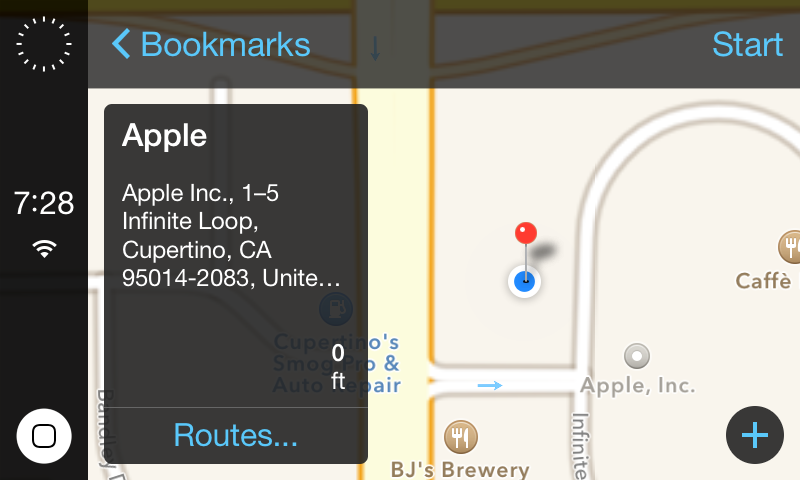
Apple CarPlay
iOS 7.1 Calendar
Today, iOS 7.1 was released. Being very anticipated update, has some nice new features in store. The biggest feature is definitely CarPlay. It lets iPhone 5, iPhone 5c, and iPhone 5s connect to a car and allow for iOS 7 to be integrated into the car's display. While it's completely useless without a CarPlay enabled car, it's still nice that Apple released it into the public. Another feature is the Siri knows when to stop listening. This is done by holding down the home button and not releasing it until you've finished talking. This was before done by Siri taking several seconds to detect the end of your speech, or by tapping the Siri icon. On the iPhone 5s, the camera app can always take HDR (high dynamic range) photos without the need to enable it manually. Overall, there's a new feel to some of the components of iOS 7.1, such as receiving a phone call. The calendar has been revamped to sport an "iOS 6 revival" style. I can tell you that some of my friends are relieved about that calendar feature. Please check out my tips for updating iOS devices for more info on updating. 

Friday, February 28, 2014

iOS in the Car Expected Next Week

After a long absence of word from Apple, iOS in the Car is suddenly ready to be deployed (according the Financial Times). Ferrari, Volvo, and Mercedes-Benz will be the initial cars shown off with the new technology. 

"The deal marks the first time that Apple is embedding its software in devices other than its own branded products. The choice of the Ferrari, Volvo and Mercedes-Benz is seen to be in keeping with the US tech group’s high-end phones."
Last year, Apple already confirmed some partners including, but not limited to, Honda, Nissan, and Hyundai. Hopefully, many more brands will be incorporated.

iOS in the Car

Saturday, February 1, 2014

Control Center

Just a quick tip for today. Control Center is a quick way to AirPlay, AirDrop, and control music. In iOS 7, just swipe up from the bottom of the screen. Then, you can view settings for Bluetooth, WiFi, and more! You can also activate a flashlight and AirPlay. Try it out! 


Friday, January 17, 2014

iCloud Tabs 4 iPhone

In iOS 6, iCloud Tabs were introduced. Here's how to use them on iPhone. Just go to Safari and tap the windows button (bottom right corner). Scroll down to the bottom and any tabs open on other iOS devices and/or Macs. Tap on one to open it. 


*This tip is for iOS 7. 

Sunday, December 22, 2013

Mapped Pictures

See your life in maps in the Photos app. Just open it (make sure that you're on the Photos tab) and pick a location. You'll see a map of the selected location. 

* iOS 7 Only


Friday, December 20, 2013

Camera from Control Center!

To quickly access your camera, just swipe up from the bottom of your iOS 7 device and tap the camera icon. It's that easy!


Wednesday, December 11, 2013

D-SLR Style Focus

In iOS 7, you can focus the camera without touching the screen. Just use the volume down button (minus button) and hold it for about five seconds. Try it out!

Friday, December 6, 2013

Flashlight

Did you know that in iOS 7 there is an integrated flashlight function? Simply swipe up from the bottom of the screen to reveal Control Center and tap the bottom-right "flashlight" icon. There you go! Your iPhone is now shining a flashlight!


Thursday, December 5, 2013

Ask Siri To Flip A Coin

Serving or returning? Who gets the last slice of pizza? Decisions, decisions. Why flip a coin in today's age? I mean, who has a quarter in today's time? Okay, a lot of people do. Either way, try this trick! Tell Siri, "Flip a coin." Instantly, she'll either say head or tails. It's completely random. Try it the next time you have to make a decision.


*Only available in iOS 7

Thursday, November 14, 2013

iBooks and iTunes U Updated for iOS 7

Today, iBooks and iTunes U were updated for iOS 7! The design is much simpler and cleaner. iBooks is an app that allows one to read digital books on their iOS device or Mac. iTunes U provides courses for schools and colleges directly to student's iOS devices. iBooks [Direct Link] and iTunes U [Direct Link] are both available for free from the Apple App Store.

iBooks New Icon
iTunes U New Icon